What you'll learn
- How customers book on your own booking page, with the reg lookup filling in the car
- Approving a booking request from the calendar
- Adding labour and parts from your catalogue, with VAT worked out for you
- Doing the health check on a desktop, tablet or phone, with photos and videos
- Sending the invoice and health check report by email or WhatsApp, synced to Xero
- Setting up MOT reminders by email or SMS
Features in this video
Read the transcript
Let's follow one car from booking to paid, and back again for its next MOT.
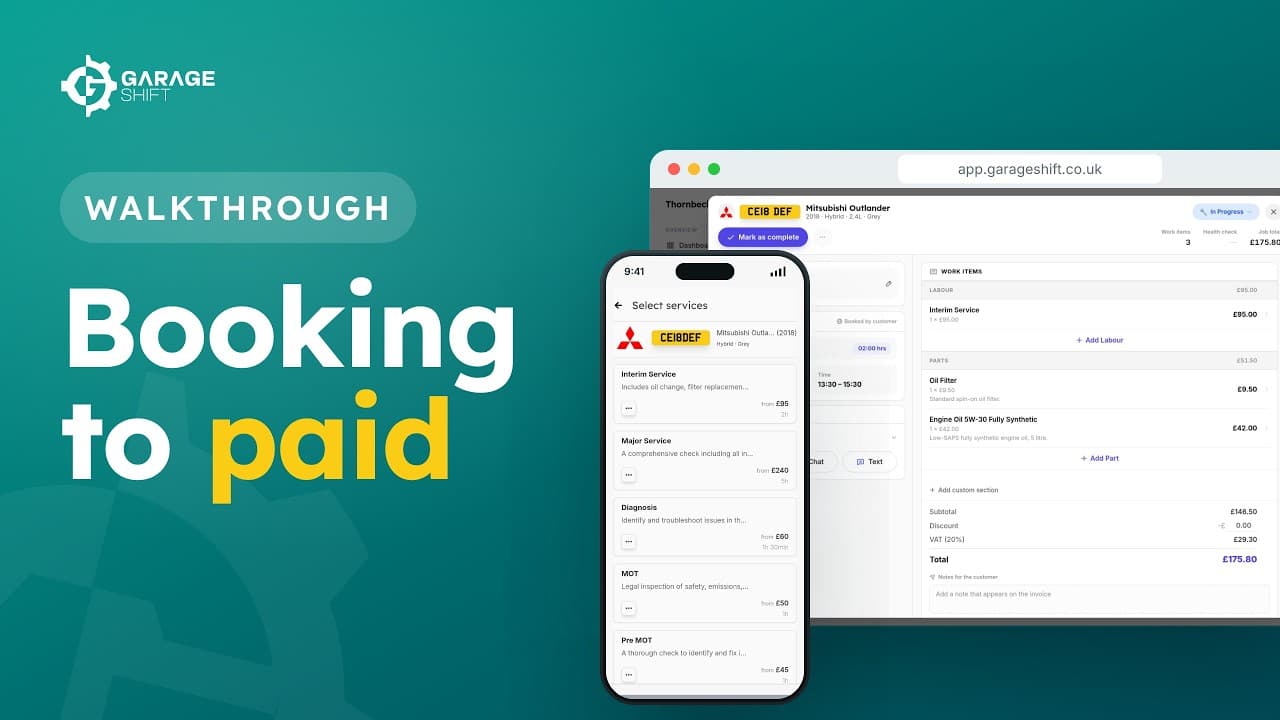
Your customers book on your own booking page, any time of day. They type the reg, and the DVSA lookup fills in the car. Then they pick a service, and a time that fits your hours.
You get a WhatsApp alert straight away. In the calendar, open Pending bookings. Choose the request, check the details, and approve it.
The booking goes into your diary, alongside the rest of the week. Open it to see the jobsheet.
When the car arrives, start the job. Add labour, and start typing. You'll see the items saved in your catalogue, as well as ones you've used before. Pick one, then add parts the same way. The VAT and the total are worked out for you.
You can do the health check on a desktop, a tablet, or even your phone, right there in the workshop. Mark each item OK, Advisory or Flag. Take photos or record videos as you go. They're attached to the jobsheet, ready to share with your customer.
When the work's done, mark the job as complete, and send it to the customer. The invoice and the health check report go out together, by email or WhatsApp. Go to the invoice, and you'll see it's already synced to Xero.
Under MOT reminders, you can see every car with an MOT coming up. In the settings, choose how many days before the MOT the reminder goes out, and whether it's sent by email or SMS. Your customer gets a reminder, with a link back to your booking page.
And it all works on your phone, tablet or laptop, with nothing to install.
Already a customer and need a hand? Contact support.