What you'll learn
- Creating a health check template from blank or from a copy
- Adding sections, checks and measurements with your own amber and red limits
- Giving the template to a service
- Using it on the jobsheet, with the slider or by typing the value
- Sending the report with your sections and readings together with the invoice
Features in this video
Read the transcript
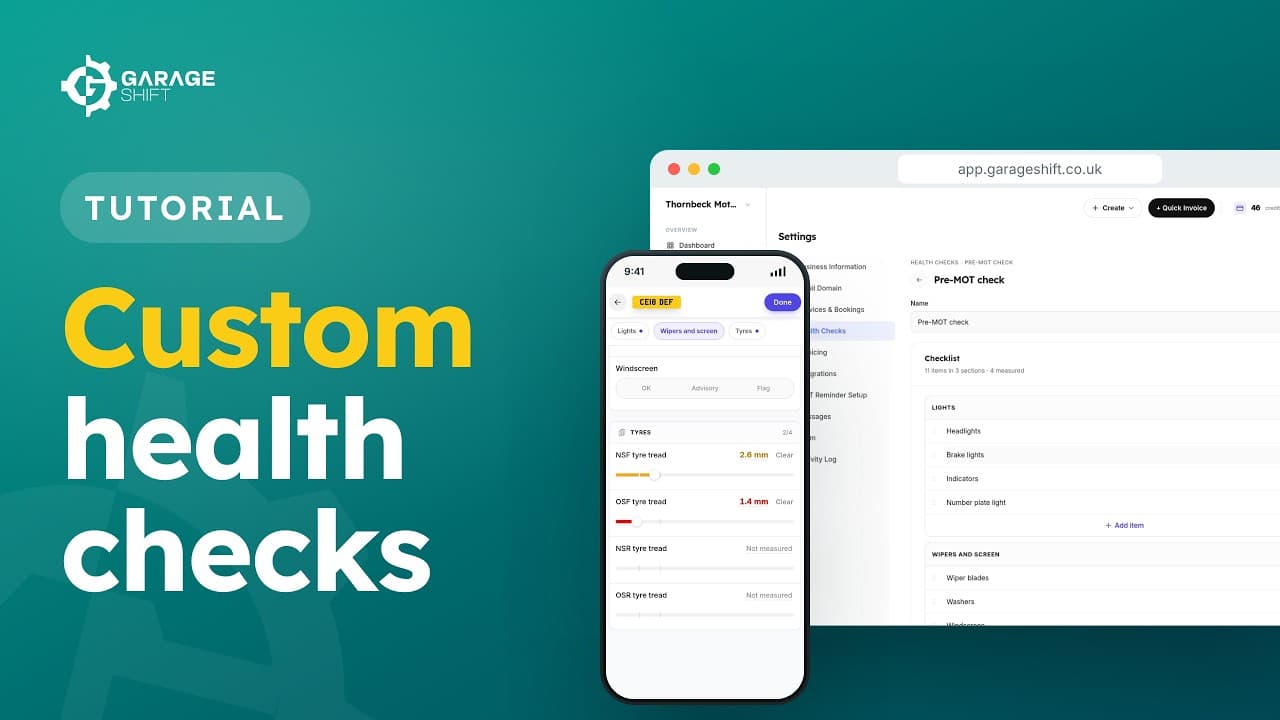
Let's build your own health check, give it to a service, and use it on a jobsheet.
In Settings, go to Health Checks. You'll see the Standard check here, along with any templates you make.
Choose New template, and give it a name, such as Pre-MOT check. You can start from blank, or copy a check you already have.
Your template starts with one section. Name it, then add your first item. Each check is marked OK, Advisory or Flag.
Add the rest the same way, and add a section for each part of the car.
For tyre tread, choose Measurement. Set the range, and the points where it turns amber and red.
Everything saves as you go.
Now give it to a service. In Services and Bookings, open Pre MOT, and choose your template under Health check.
Back in Health Checks, you can see which services use it.
When a Pre MOT job starts, the jobsheet picks your check for you. You can still change it before the check begins.
Start the check, and work through each section.
Measurements use a slider, or you can type the value in. Either way, they change colour at your limits.
And it works just as well on your phone, right there in the workshop.
When the job's done, your customer gets a report with your own sections and readings, sent together with the invoice.
Already a customer and need a hand? Contact support.